Go Mail
My Role
UX LeadInteraction DesignUsability TestingPrototypingUser Flows
Year
2025Project Type
PersonalCase StudyDeliverables
High Fidelity PrototypeUser ResearchDuration
8 weeksBrief
In today’s world, email has become an essential part of communication and business. It is not only a means of communication but a highly effective marketing tool. Today an estimated 4.6 billion people use email. The average office worker receives up to 80-121 emails a day, 49% of those contributing to spam. On average employees spend an average of 11-15 hours per week managing and organising emails. A study conducted within Microsoft confirms that the average employee receives up to 117 emails per day and an additional 153 Teams messages, and on average employees are interrupted every two minutes from such notifications. This global study, which analysed 31,000 Swiss workers revealed that 48% of those workers reported that work weeks often felt chaotic and fragmented, with suggestions of AI to help sort workloads by assisting in daily routines.
Tools such as email sorters are fairly powerful tools but are vastly underutilised whilst also fairly niche. Such tools allow for improved organisation, work efficiency and time management, and enhanced collaboration and teamwork. In response I aim to design an email sorter, but also a work-based sorting system that optimises work flows by sorting inquiries, meetings, global company notifications and more.
Challenge
Email is a commonly used source of communication and information however the ease of accessing important or prioritised emails can be hindered by overloaded inboxes and unwanted emails and other kinds of clutter. These emails can pile onto each other thus hindering productivity. This is especially detrimental when needing to track important emails relating to things such as business and finance. Thus, there is a need to create an effective method where emails are easily sorted, tracked and controlled.
User Research
User research was conducted through one-on-one user interviews. The survey focuses on identifying the target users, challenges, and effort involved when organising overbearing work and spam mails.
How often do you use Email, work and personal?
How often do you spend using email a week (reading, sending, other)?
Is there a positive or negative user experience when using email. How and why?
Is email clutter a particular issue for you. What are the issues relating to email clutter?
Do you often receive emails that have little relevance to your current life. Has it ever hindered or discouraged the use of email?
Could email benefit from an improved sorting and prioritising system?
Does email have enough features that organise and sort messages?
Would a feature that provides automatic scanning allow for easier sorting, cleaning, prioritisation provide benefit. How could it be implemented?
How would you improve on email as an experience from user satisfaction, features, formats and UI?
Results
User research comprised of three full-time working adults, 2 male and one female. The ages of those interviewed, included a 24 and 56-year-old male and a 57-year-old female. All three interviewed frequently and heavily use email within the working week, one of them rarely uses personal email.
Time spent using email
Out of 3 respondants 2 said, 5 days a week, whilst the other 6-7 days a week.
Positive and negative experiences using email
A general consensus conveyed that email, allows communication to people, other tools are bettert for direct communication, and design is mostly utilitarian serving only to complete its function. Has it’s neccessary features, but not much else.
Recieving spam and sorting through clutter
Two respondanst don’t have any issues, deleting most unwanted emails and only reading relevant ones. Second respondant has many junk mails, mostly shopping and promotions and usually has to spend time manually clearing them.
Email sorting systems
All respondants said it would be helpful for more organisiation tools to be added, manual flagging could be improved via keyword screening or sorting highlighting senders. Whilst email has sorting features, specific targeting of certain mails can be improved to make them easy to find.
Improving sorting systems and email
Has a good experience using outlook, but could possibly improve it. Automatic sorting would still need to be screened without deleting without permission.
User Insights
There were total three participants interviewed. All respondents noted that email was perfectly functional for work related purposes. All respondents noted that email had all its necessary functions making it perfect at what it needs to do: send and read messages. However, two of them noted that organisation functionality could be improved. 2 users would sort emails using some of noting that flagging systems or search were the best ways to keep track of emails, however all needed to be manually checked. 2 users were unsure of how to improve sorting and email prioritisation whilst one suggested more categorisation and filtering options, whilst the other felt it worked perfectly fine.
User Needs
To create a first prototype, we must identify the target audience’s needs and goals. Who is the target audience? Office workers, contractors, corporate jobs, and workers of this variety. This product will be most likely used by those who belong in these industries whilst are most likely to be aged 22+. The goal is to help reduce the time inside work and outside work hours spending time sorting through emails, whilst also sorting out those emails to their exact locations improving efficiency and productivity. It has first been adopted into a mobile app, but desktop is also a priority.
Competitor Analysis
Competitor analysis was conducted, this provided additional information on what similar products and what could be improved upon, either finding new solutions or taking from the positives of each and merging them together. Competitor analysis allows us to improve upon previous iterations of the smae or similar concepts.
| Pros | Cons | |
|---|---|---|
| Clean Email | Smart Folders (Labelling Tool) Filtering Tools (Rule Creation) Auto Clean and Mail Screening |
Tools such as Mail Screening Auto Clean locked behind paywall |
| SaneBox | Deep Clean (Scans Bulk Messages and Filter) Organisation Options |
English Only IOS/Web Exclusive SaneBlackHole (Unsubscription Tool) only sends them to a folder No smart folders No Screening functionality |
| Sortd | Team Collaboration task management Allows users to sort mail into kanban boards |
Strictly Gmail Compatable No auto mail sorting Single account support |
| Reply | AI algorithm auto sorts messages Task management and meeting scheduler |
Not designed for personal use Only Sorts email campaigns(sales) |
| Shortwave | Bundle Tool - Threads emails into smart labels. Bundle tool needs to be configured Fully integrated email client |
Requires alot of manual setup Steep learning curve |
User Personas
Journey Map
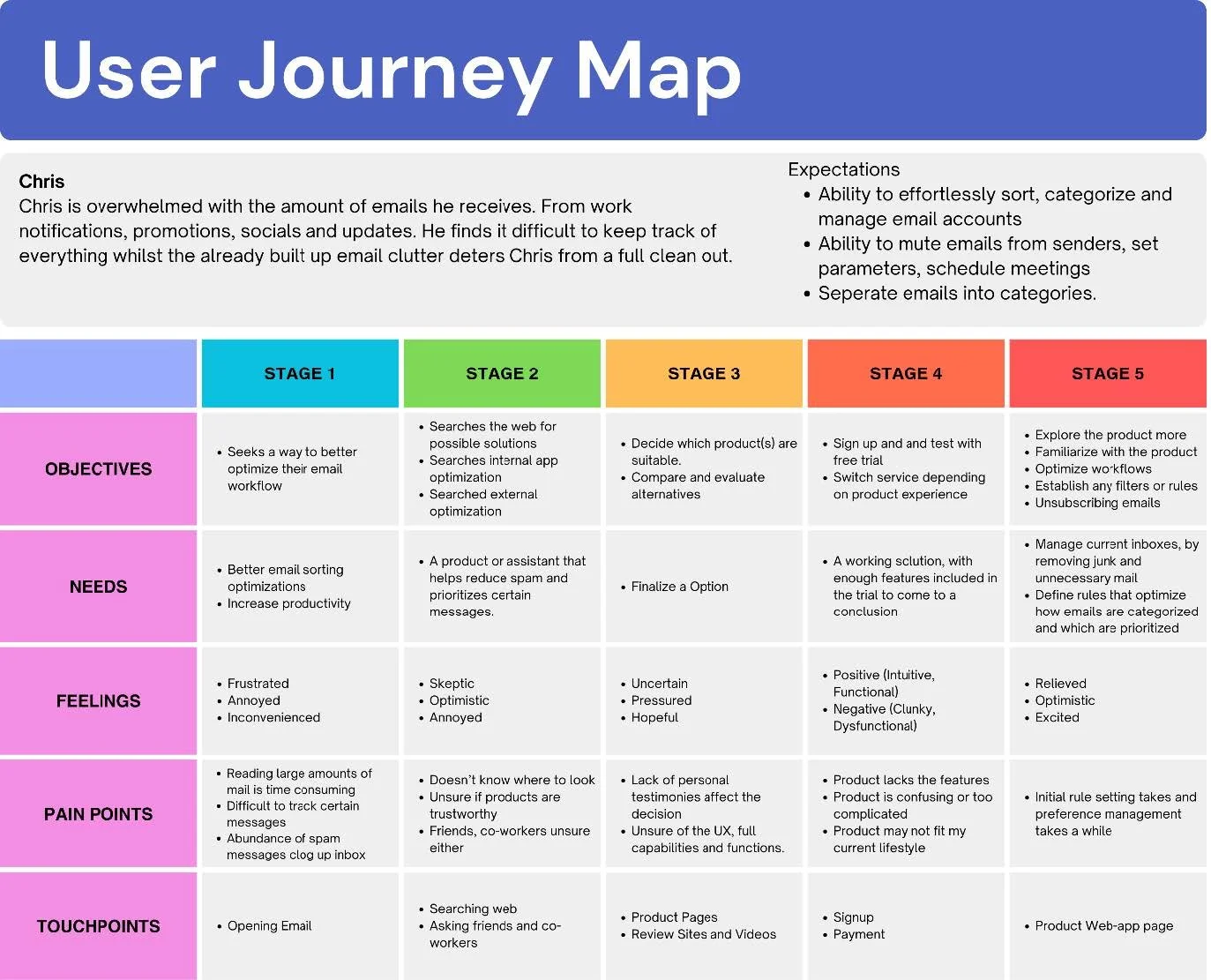
The user journey map below highlights key aspects from initial discovery to post-purchase usage. It highlights needs and pain points that come in each stage. Touchpoints highlights points where the user interacts and engages with.
User Testing
One-on-one usability tests were conducted observing user behaviour, interaction and response towards the prototype. Participants' reception noted both positive and negative reactions, whilst providing valuable feedback. Participants were asked to complete tasks whilst navigation time and verbal response were observed and recorded.
Some users expressed that structure and navigation could use improvement. One suggestion was the addition of a navigation bar or menu underneath of navigation bar, displaying different categories including different meats, vegetables, and bases ie. rice or noodles.The tester suggested a revamp of the app structure, adopting a larger grid based structure, enlarging items whilst, including greater detail of the item itself underneath the item itself.
A separate user interviewed suggested removing the search bar at the top of each screen or simply converting it into a small icon, freeing up screen real estate which could then be replaced with filtering tags or options. Prioritising minimalism would modernise the design whilst also minimising distractions contributing to a neater UI.
Recomendations
Grid Layout
Second or Sub Navigation
UI Simplification
Categorised Food menu
Ideation stage
User Flow
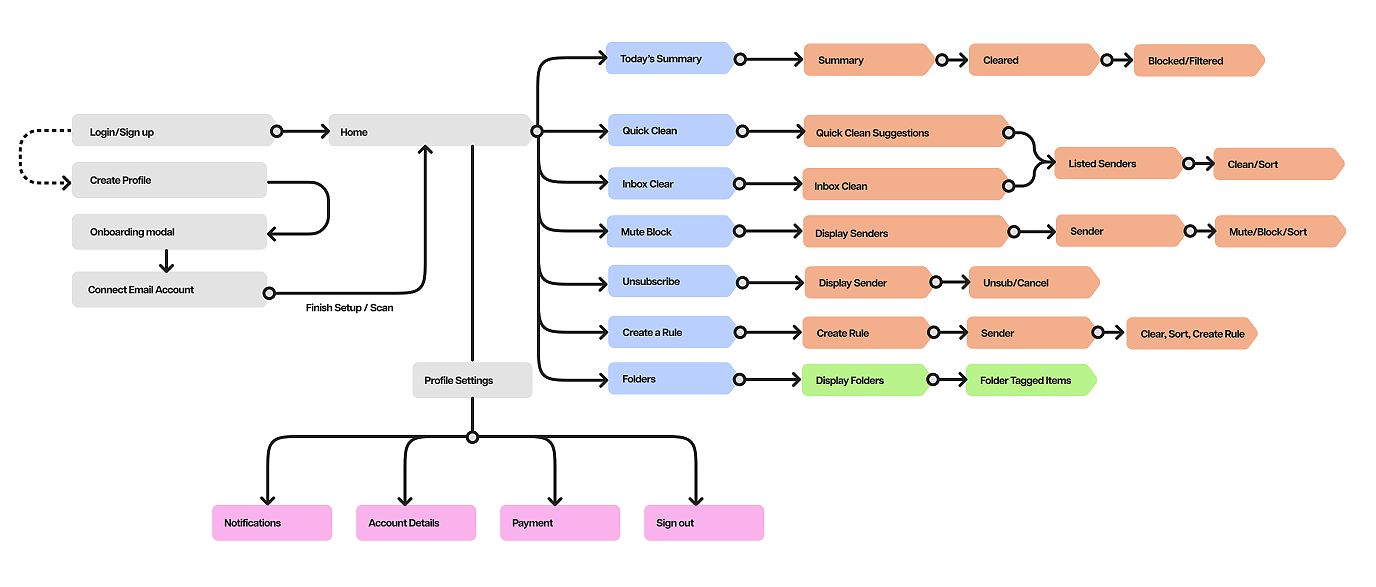
Before sketching and wireframing, the user flow was created outlining the structure and app navigation. The outline showcasing the general flow of the app:
1. The onboarding process begins with standard signup process; where users will enter their details linking their email account.
2. Users will be told some of the basic functionalities and features, guided through the process.
3. Most app functionalities are accessable from the dashboard(home), otherwise accessed through athe side menu. The navigation is split into 3 dropdowns; profile settings, tools and quick access. Profile settings relate to app settings, payments, accounts, help and terms and conditions. Tools relate to functions that sort and clean emails, and quick access resembles your standard email UI, for easy access without switching between apps.
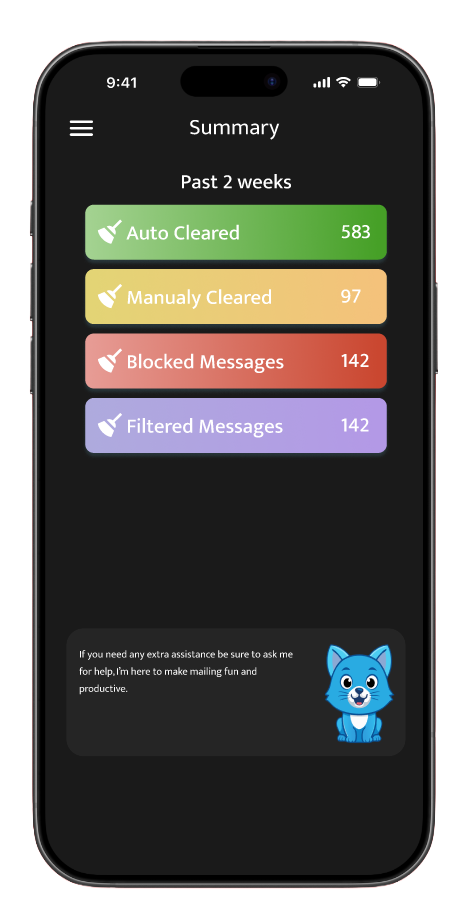
4. View summaries that show messages, cleared, filtered, sorted and blocked, keep tangible use and feedback after each clean. Will refresh bi-weekly,app will give updates in summaries with future.
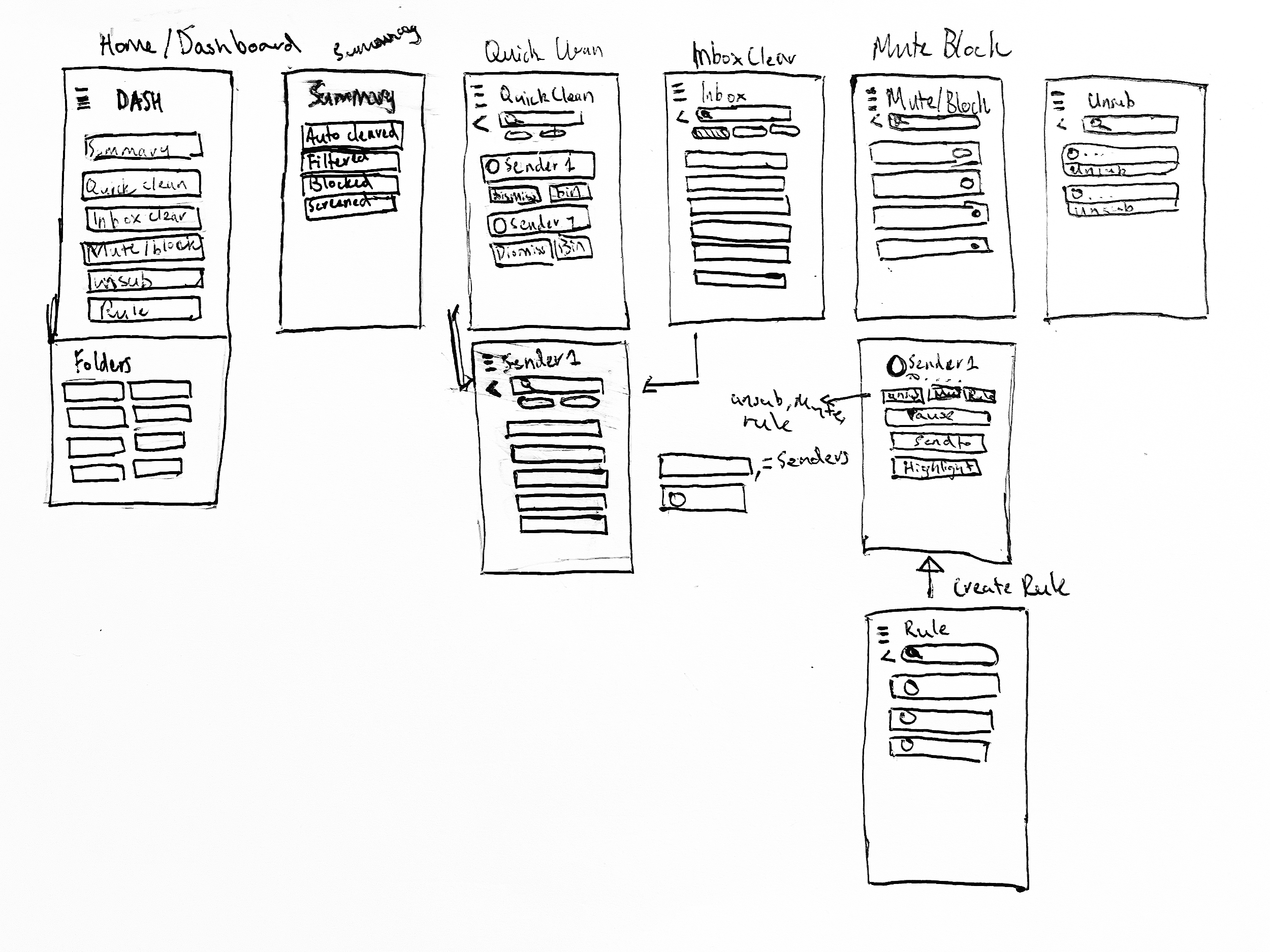
Low Fidelity Sketch And WireframeLow Fidelity Sketch Prototype
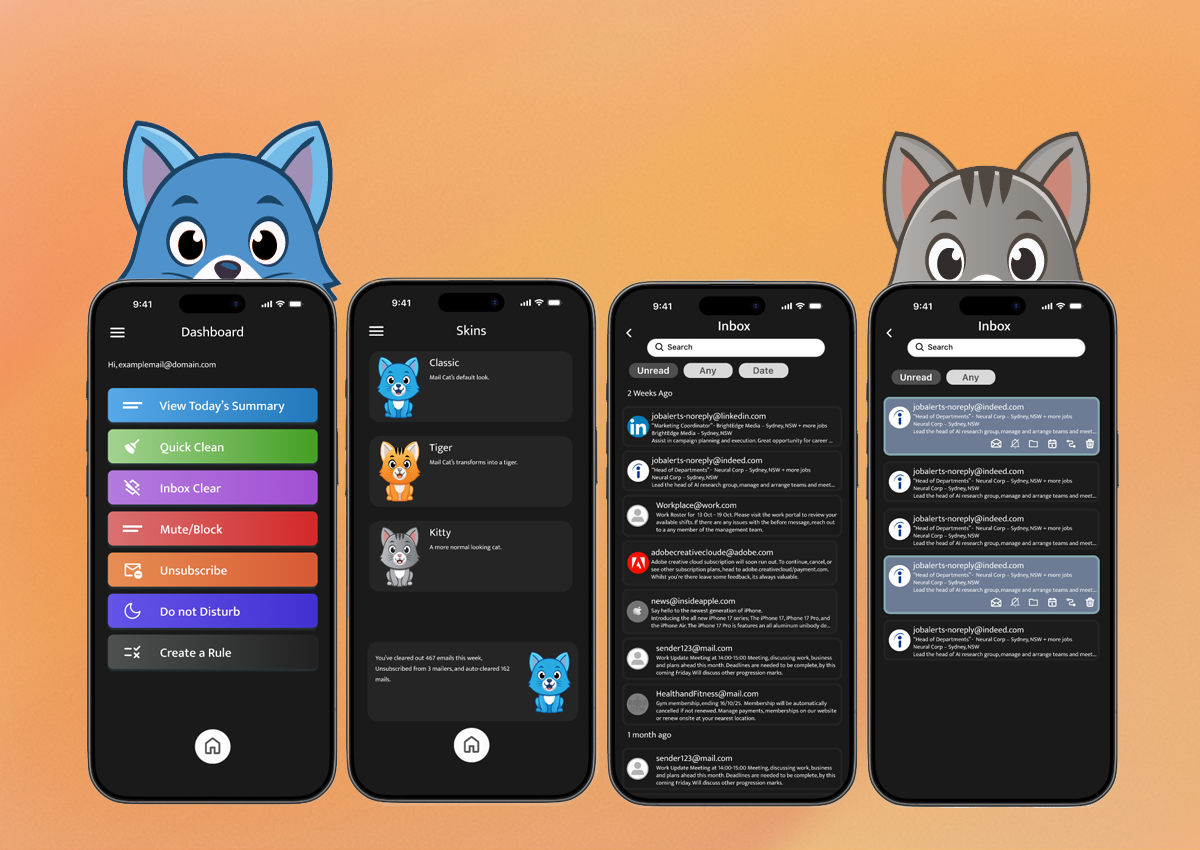
The development of the user flow adapted into app screens to see the flow and organisation of elements needed for the app. The home page acts like a hub page, all core features are accessable on one page.
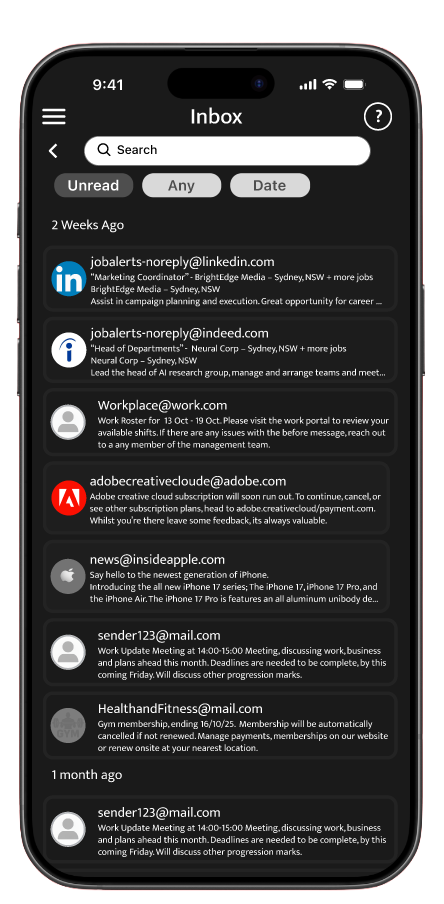
Inbox
Throughout this study, the user research and feedback many improvements can be made. Including a rework of the user interface, whilst all fundamentals are present, ability to push the product into something more unique was expressed.
Final Product
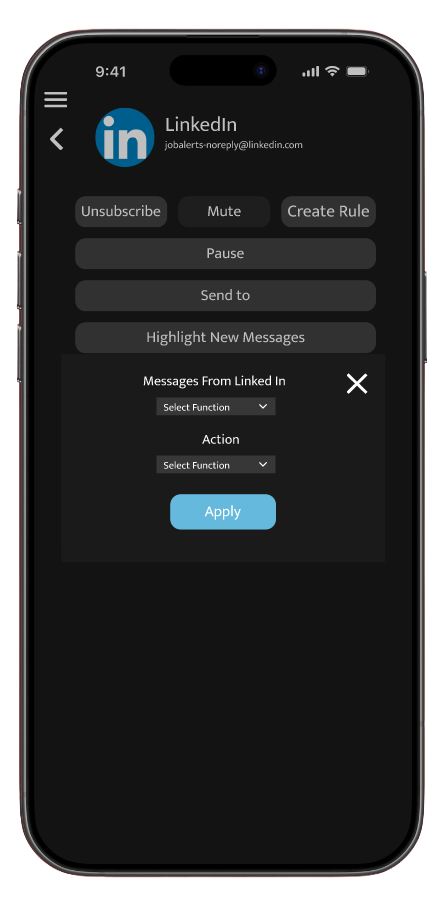
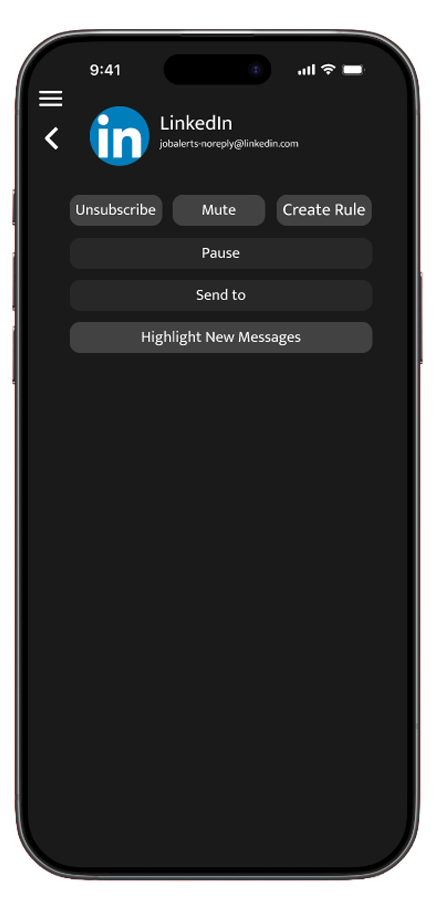
Rule Creation
Create rules which sort through emails. Send them to folders, the bin, pause notifcations. Tag mail from senders to either prioritise and sort through them. Rule creation gives the user direct traffic control of incoming mails and pre-existing mail.
Mute Block
Mute, block or pause messages to increase productivity, prioritise important messages or stop spam from entering you’re inbox. Set timers to temporarily mute messages from entering you’re inbox.
Summaries
Get a bi-weekly summary of cleareed mails, blocked, and filtered messages. App will detect possible scam and spam mails to automatically be cleared. But will require one extra step to delete completely incase important mails slip through. The app mascot will appear giving these updates whilst also serving as a app guide.
Conclusion
Continued development is needed, leaning heavily into a playful aspect that a mascot could bring to further individualise itself offering a distinct unique value. Elements such a dynamic mascot that changes or reacts based off using certain functions, completing or cleaning a certain number of emails could contribute towards a progress bar that changes the state of the mascot heavily leaning into the idea. Additionally, formatting when selecting filters requires improvement. Inclusion of a clearer onboarding process may need to be included instead of self-guided learning through tool tips.